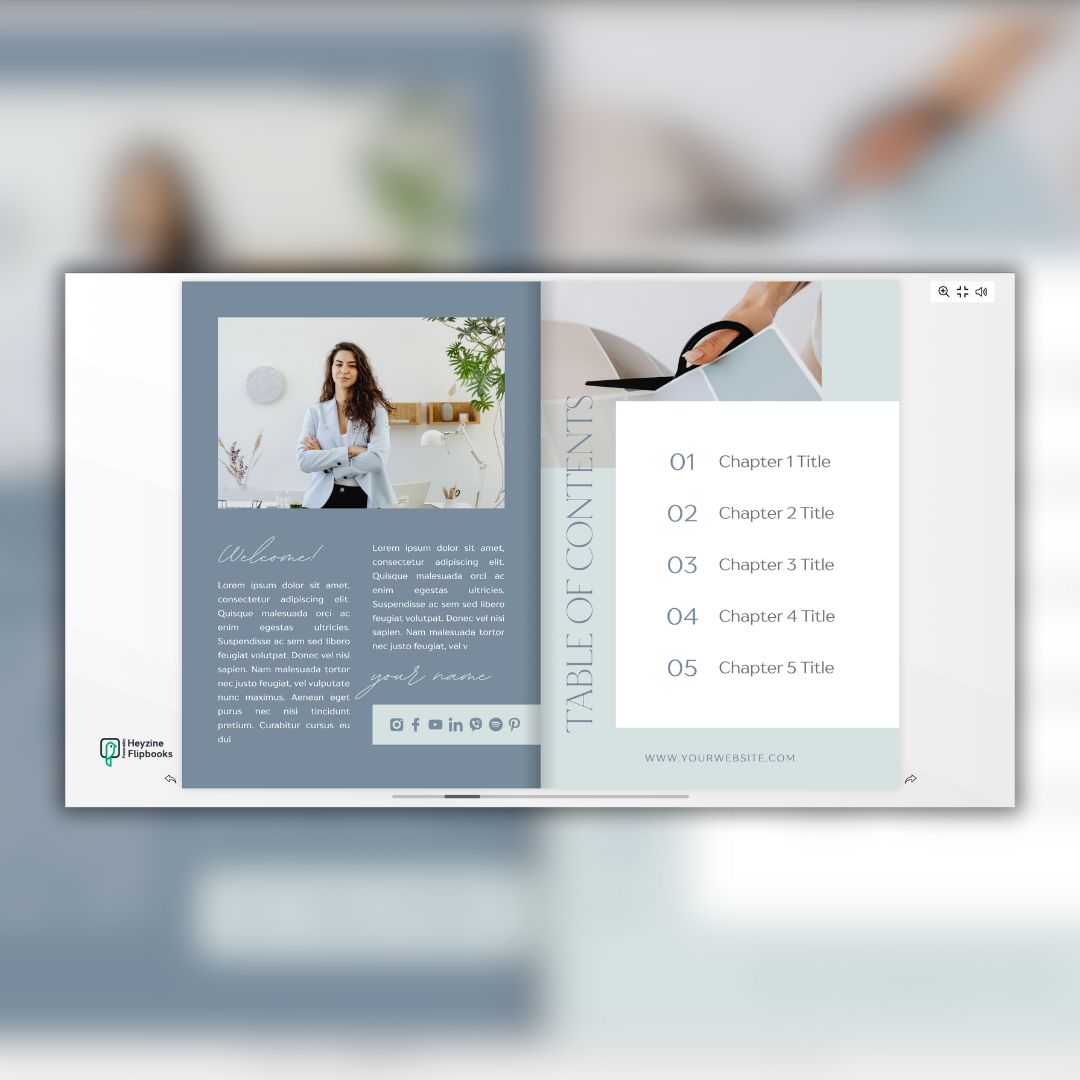
How to Make a Clickable Table of Contents in Canva
If you’re designing an ebook or PDF in Canva, one of the best ways to make it look professional and easy to navigate is by adding a clickable table of contents. This allows your readers to jump straight to any chapter with just one click—no endless scrolling (especially when you’re ebook has a lot of pages).
In this guide, I’ll walk you through the exact steps to create a clickable table of contents in Canva.
Table of Contents
Not a reader? Watch the video version here
Why Make Your Table of Contents Clickable?
A clickable table of contents:
Makes your ebook easier to navigate
Improves the reader’s experience
Gives your ebook a polished, professional feel
Works great for digital products, workbooks, and coaching guides
Before linking, make sure each chapter page has a clear title. These titles will help you find the right pages when creating links.
Step 2: Link Your Table of Contents Text
Go to your table of contents page.
Click the text you want to link.
Select the page you want to link it to.
Repeat this for each chapter title.
👉 Pro Tip: Without proper page titles, it’s harder to find the correct pages to link.
Step 3: Remove Underlines (Optional)
By default, Canva underlines links. If you prefer a clean look, simply:
Select the linked text
Press Command + U (Mac) or Control + U (Windows), or
Click the underline icon to remove it
Step 4: Download as PDF (Important!)
When you’re ready, download your ebook as PDF Standard.
⚠️ Do not tick the “Flatten PDF” option. Flattening will lock your design elements and hyperlinks, making your clickable table of contents stop working.
Step 5: Test Your Links
Open your downloaded PDF and click on the chapter titles. Each one should take you directly to the correct page.
And that’s it—you now have a fully clickable table of contents in Canva!